Convert Lead to a Customer
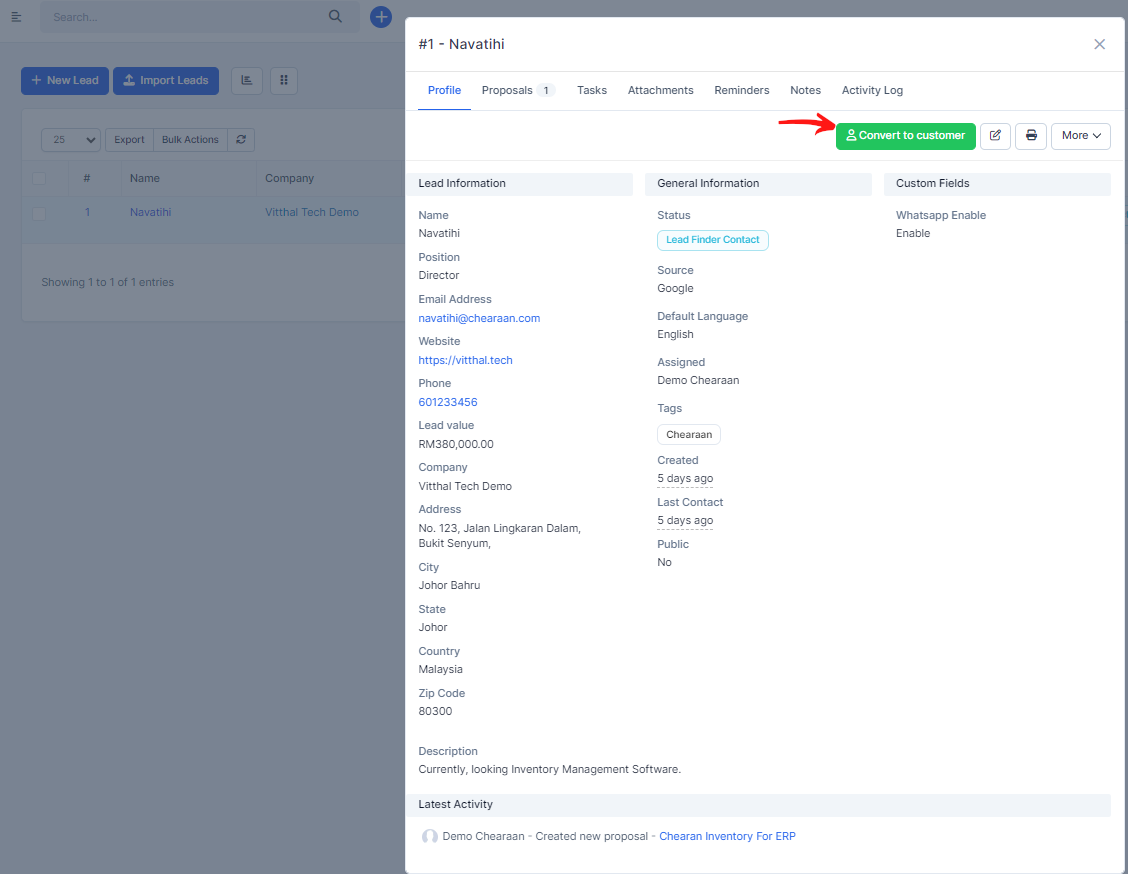
- Click on the lead and wait for the modal to be opened, on the top button click Convert to a customer.
- The convert to customer modal will be shown and the system will try to auto-populate some fields like first name, last name..
- If custom fields found for lead will be shown as well in the convert to customer modal and you will have the ability to merge the custom fields in the customer profile as custom fields or database fields. If you are merging as a custom field and this field not exist will be auto-created.
What will happen after I convert the lead to a customer?
After you convert the lead to a client the lead will be auto-moved to the default system status Customer if is not already there.
In leads table, by default, the leads that have status “Customer” will be excluded because they are converted to a customer and no longer needed to be seen in the table on table load if you want to list them you will need to apply the filters.
Make sure you don’t rename the default system status Customer to something else to avoid confusions.