This option is for real-time notifications, which means you won’t need to refresh the page if there is a notification.
Before, when new notifications for a user were added, you needed to refresh the page to update the notifications. In this case, the notification will be real-time and shown immediately in Accentra on the top right side.
First, you must register on the Pusher.com website to use their services. Click here to register if you haven’t registered already.
Log in to pusher.com with your account, and in the channels section, click Manage , as shown in the screenshot below.
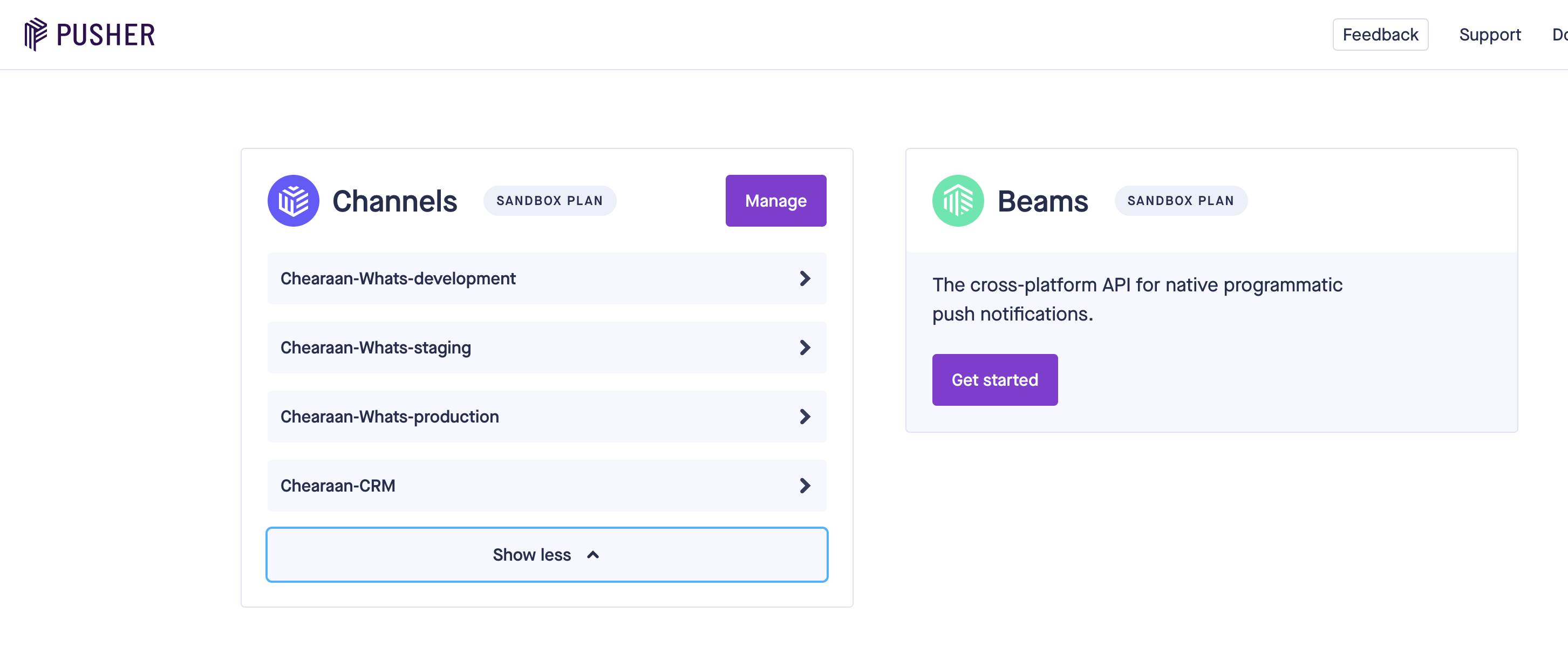
At the top right side, click Create App
A popup window will be shown to create your new application.
- Name your app – for example: Accentra
- Select a cluster – By default pusher.com will select your cluster, you can change it if its needed. You can read more here what is cluster: https://pusher.com/docs/channels/miscellaneous/clusters/
- Frond-end tech stack – Select jQuery as shown in the image below.
- Back-end tech stack? – Select PHP as shown in the image below
Click on Create app at the bottom of the popup modal.
After the app is created click on the App Keys sidebar menu and on the right side you will be able to see you app keys that needs to be added in Setup->Settings->Pusher.com in your Accentra admin area.
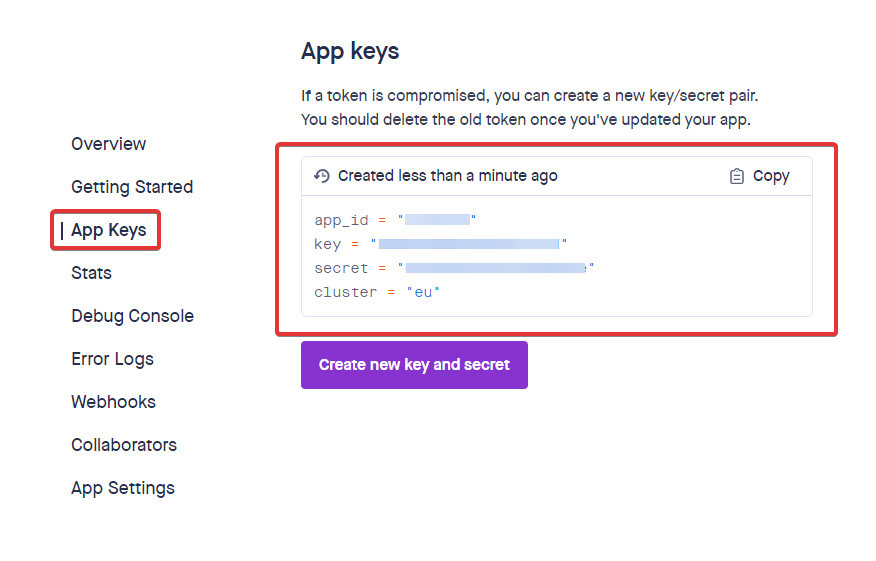
Add the keys to the corresponding fields.
- app_id = APP ID field
- key = APP Key field
- secret = APP Secret field
- cluster = Cluster field
After you add the keys set Enable Real Time Notifications to Yes and save setting.
That will be all when setting up Pusher.com realtime notifications with Accentra.