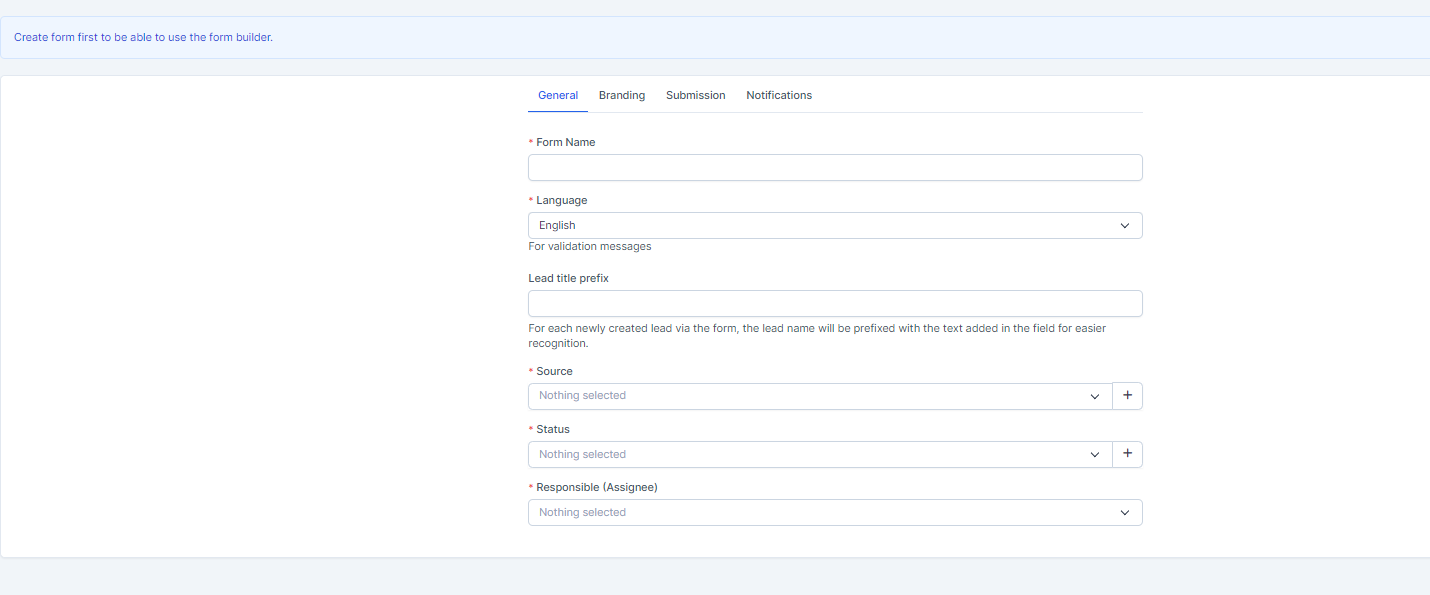
Accentra Web to Lead feature allow you to build a web form based on leads fields and custom fields to place it on your website, landing page etc as an iframe.
The visitors can then enter their names, email addresses, upload attachment and other basic information to create a lead directly in Accentra.
To create new web to lead form, from the main admin menu navigate to Setup->Leads->Web To Lead
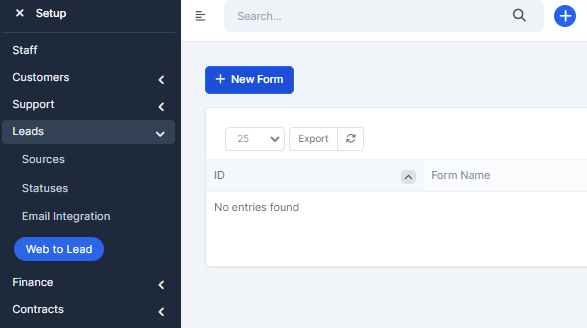
Click on the button on the top left side New Form
NOTE: You will be able to build the form after you first create the initial form including all the settings.
- Form Name – Give your form a name, it’s for personal use and also will be displayed in the lead profile when you open lead.
- Language – The language is currently used only for the validation messages.
- Submit button text – The bottom where the user will need to click to submit the form E.q. Request a Quote or Contact us, feel free to adjust to fit your needs.
- Message to show after the form is successfully submitted – This message will be shown after use successfully submit the form.
- Allow duplicate Leads to be inserted into a database? – Often in web to lead forms duplicate leads are inserted into database. Accentra has the ability to prevent this from happening by auto creating the lead as task including all form data as a description instead of inserting directly to the leads database, in this case, the responsible staff member will need to analyze the lead data and take further actions.
- Source – Default lead source
- Status – The lead will need to be in status after successfully is imported into Accentra database.
- Responsible – Auto assign the lead to a specific staff member.
- Notification settings – All users based on the notification type will be notified via built in notification inside Accentra and additionally the responsible lead staff member will get an email notification if in Setup->Email Templates -> New Lead Assigned to Staff Member is not checked as disabled.
- Recaptcha – You can use Google Recaptcha to prevent spamming. The field for Google Recaptcha will be shown only if you have previously configured the recaptcha keys.
After you create the form 2 new tabs will be shown in the form area Form Builder and Integration Code.
- Form Builder – The place where you build the form and adjust all the fields you need.
- Integration Code is the code you will need to place into your website the form to be shown, note that from the link you will be able to see that each for have unique key.
Building The Form