The banking rules page is used to create and manage data for automatic classification of common recurring transactions.
This configuration is for import transaction and Download transactions in Banking Feeds
Create banking rule
To add a new account detail type to your organization:
- Step 1. Go to the Setting menu under the Accounting module in the left sidebar -> Select the Banking rules menu.
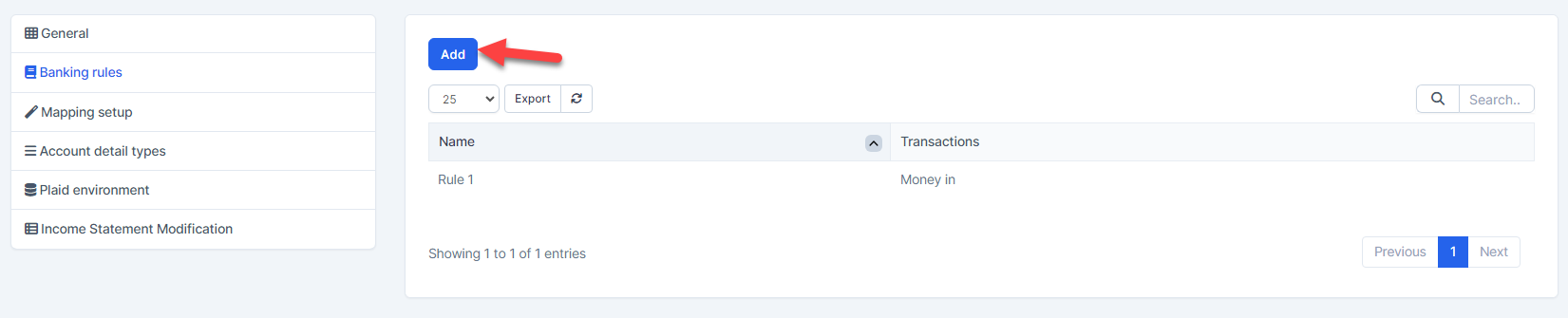
- Step 2. Click on the Add button
Step 3. In the Banking rule page, fill in the following details
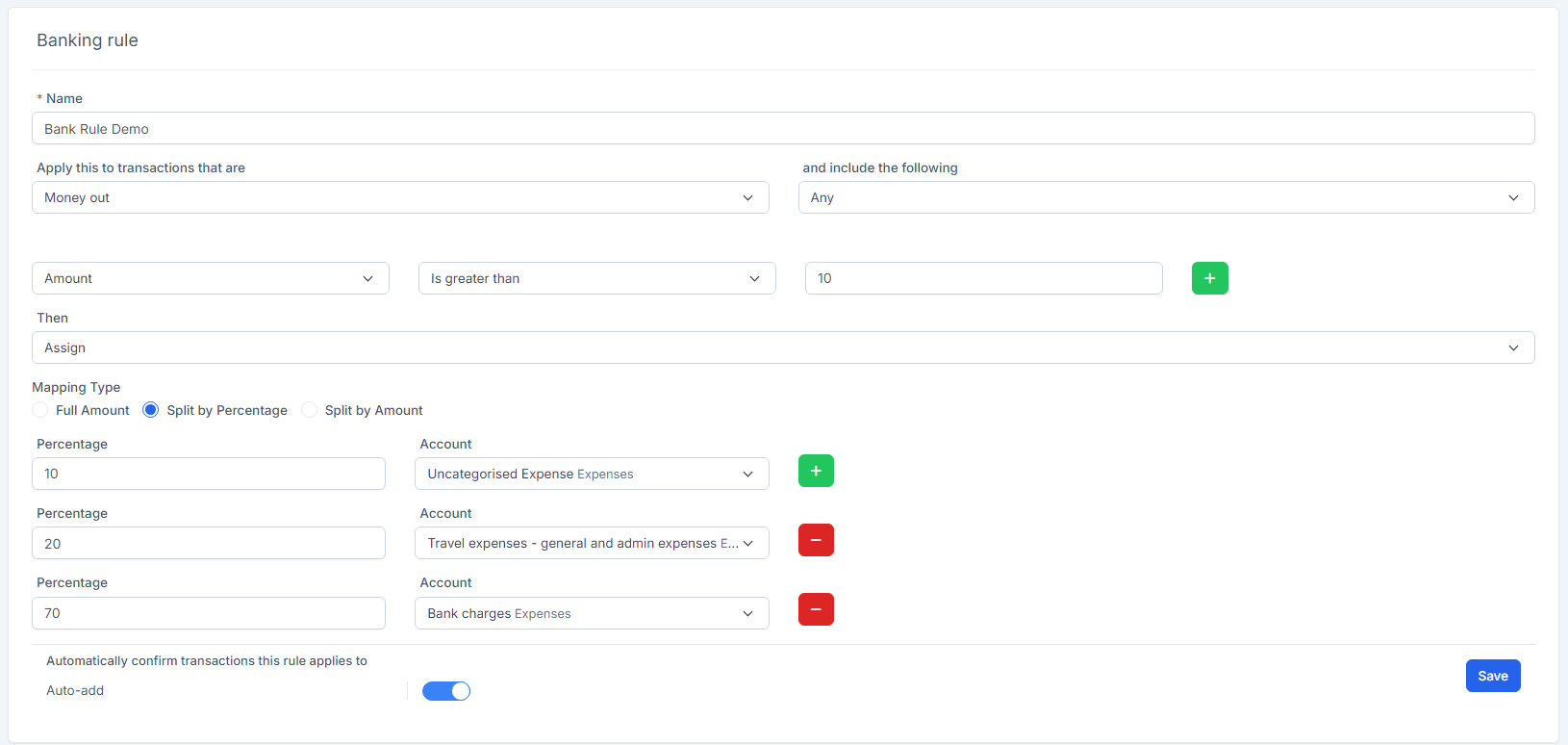
1. Enter the Name
2. Select the Apply this to transactions that are: Money in or Money out
3. Select the and include the following : Any or All
4. Select the Description or Amount
5. Select the Contains or Doesn't Contain or Is exactly
6. Enter the content in the next box
7. Select the Then: Assign or Exclude. If you choose Assign, you will continue to select the fields in section 8, 9
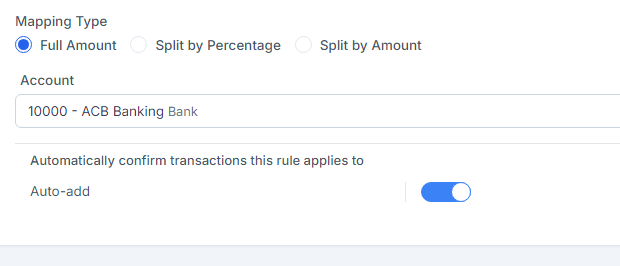
8. At Mapping Type: choose 1 of 3 options: Full Amount, Split by Percentage, Split by Amount
If you choose Full Amount, the entire amount will be mapped into 1 account
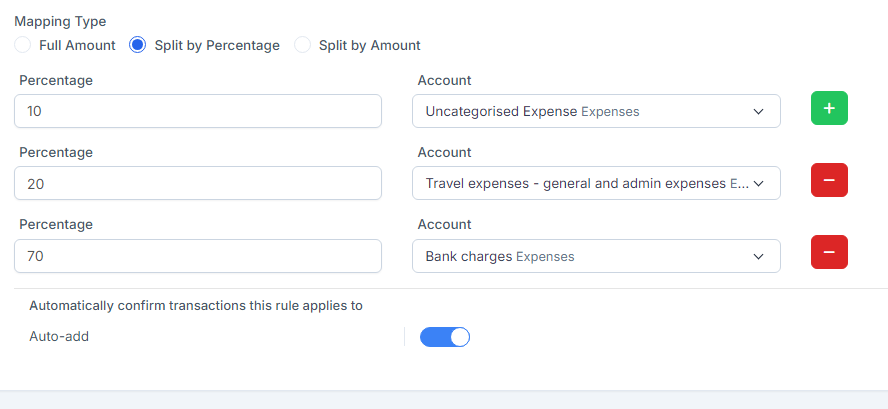
If you choose Split by Percentage, the amount will be divided by percentage and mapped to each account
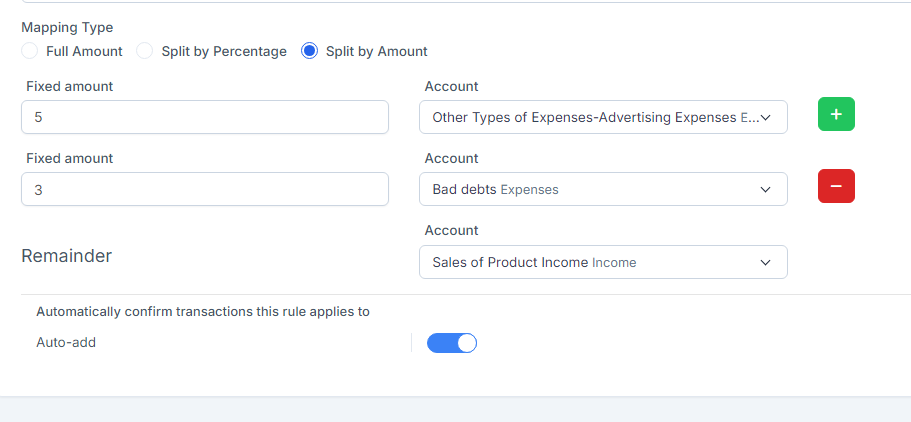
If you choose Split by Amount, map a fixed amount to each account.
- 9. Enable the Auto-add: Any transaction that meets the conditions of the rule will automatically be mapped to the Payment account and Deposit to preselected in the rule.
For example: - Step 1: there is a rule like the picture
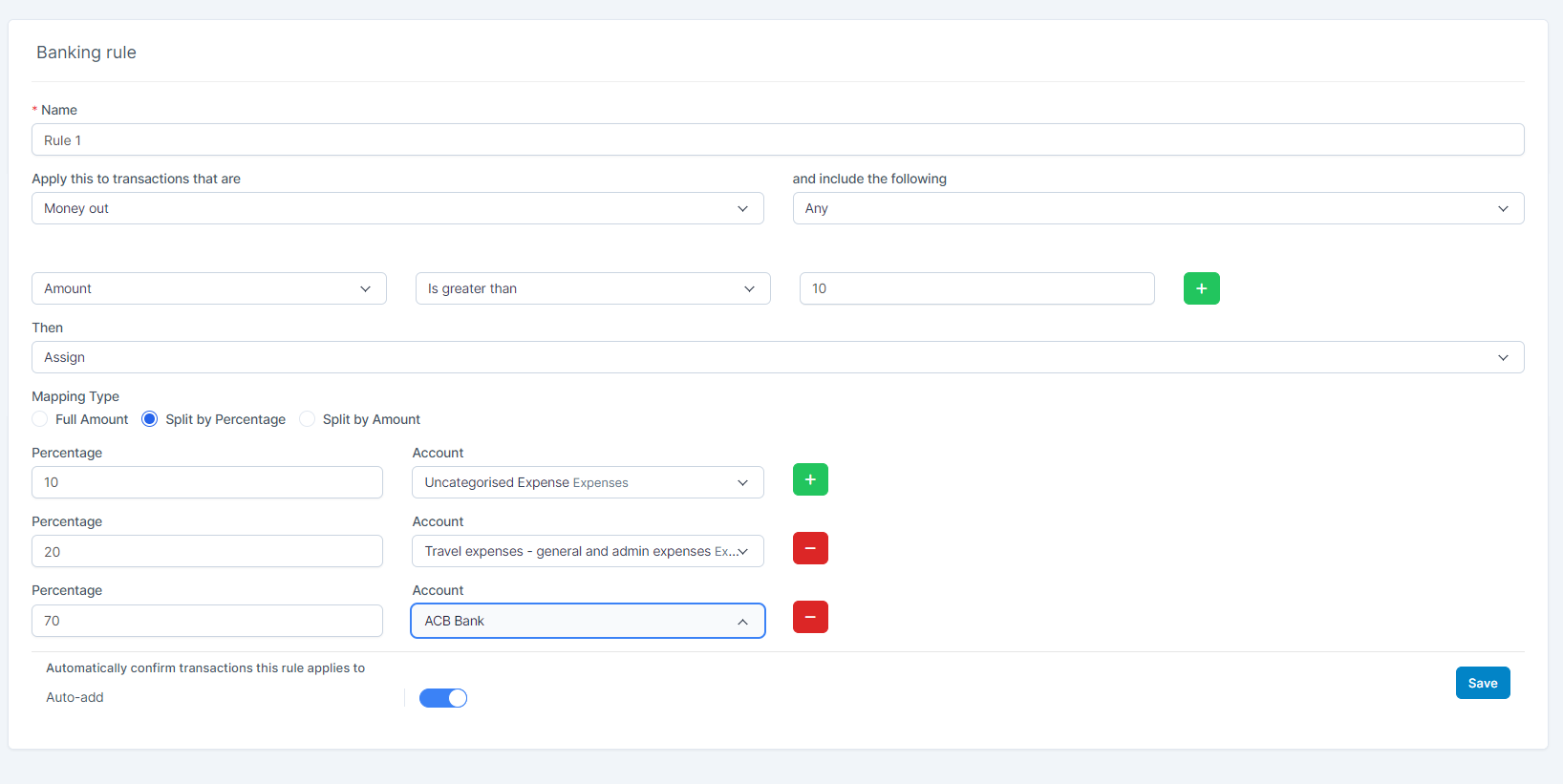
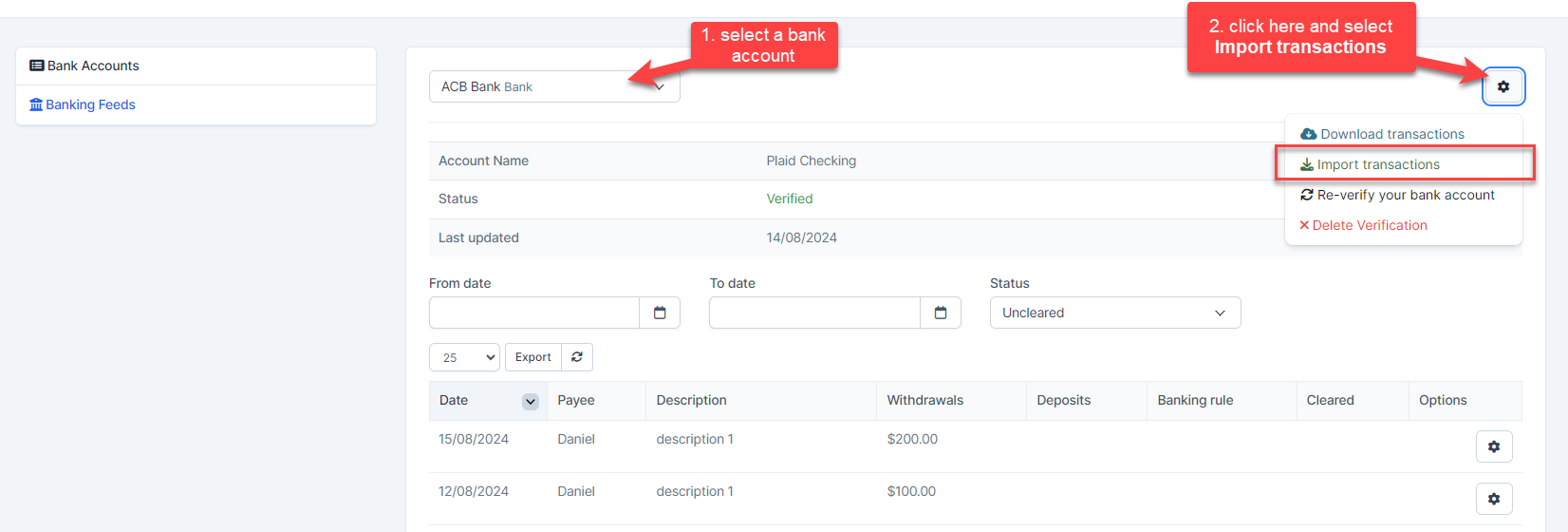
Step 2: Go to Banking -> Banking Feeds→ Click on the gear icon in the right corner and select Import transactions--> then import excel into ACB Bank with the file as shown below
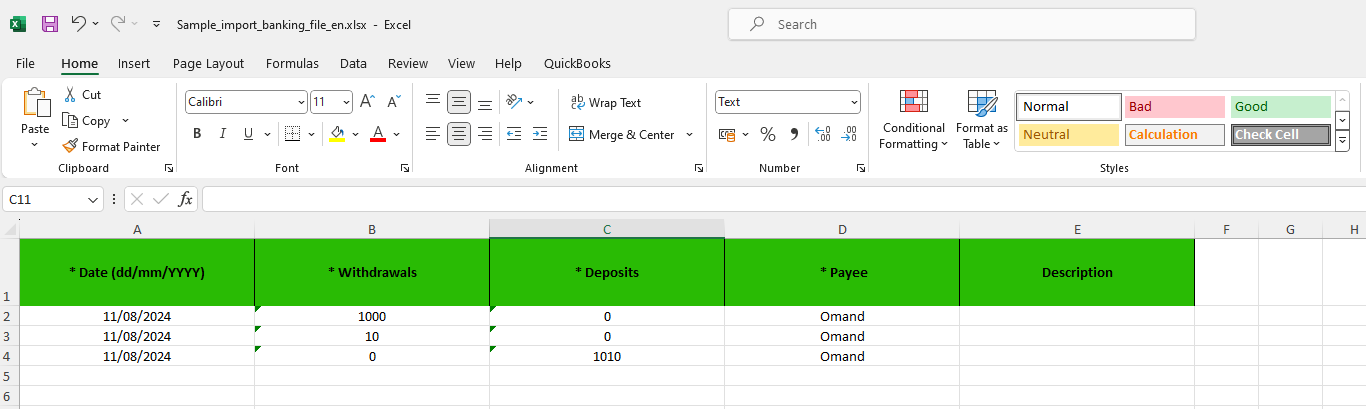
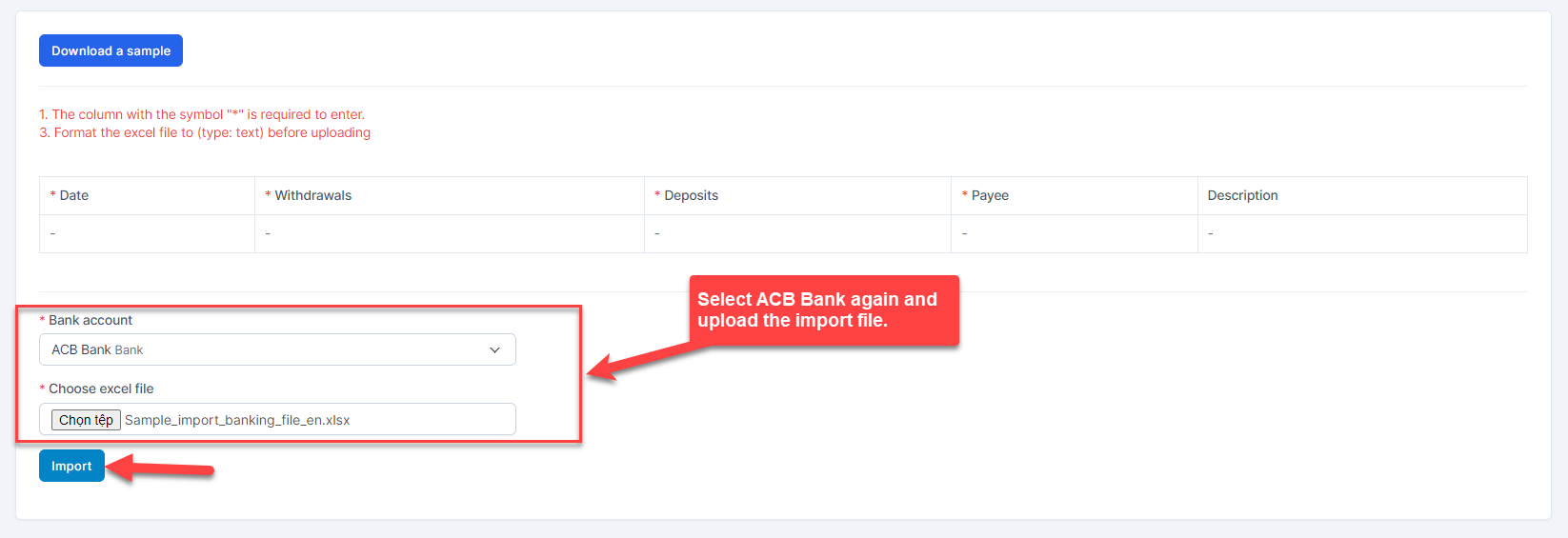
Result: only the 1st line in the file meets the rule and automatically maps to the corresponding accounts.
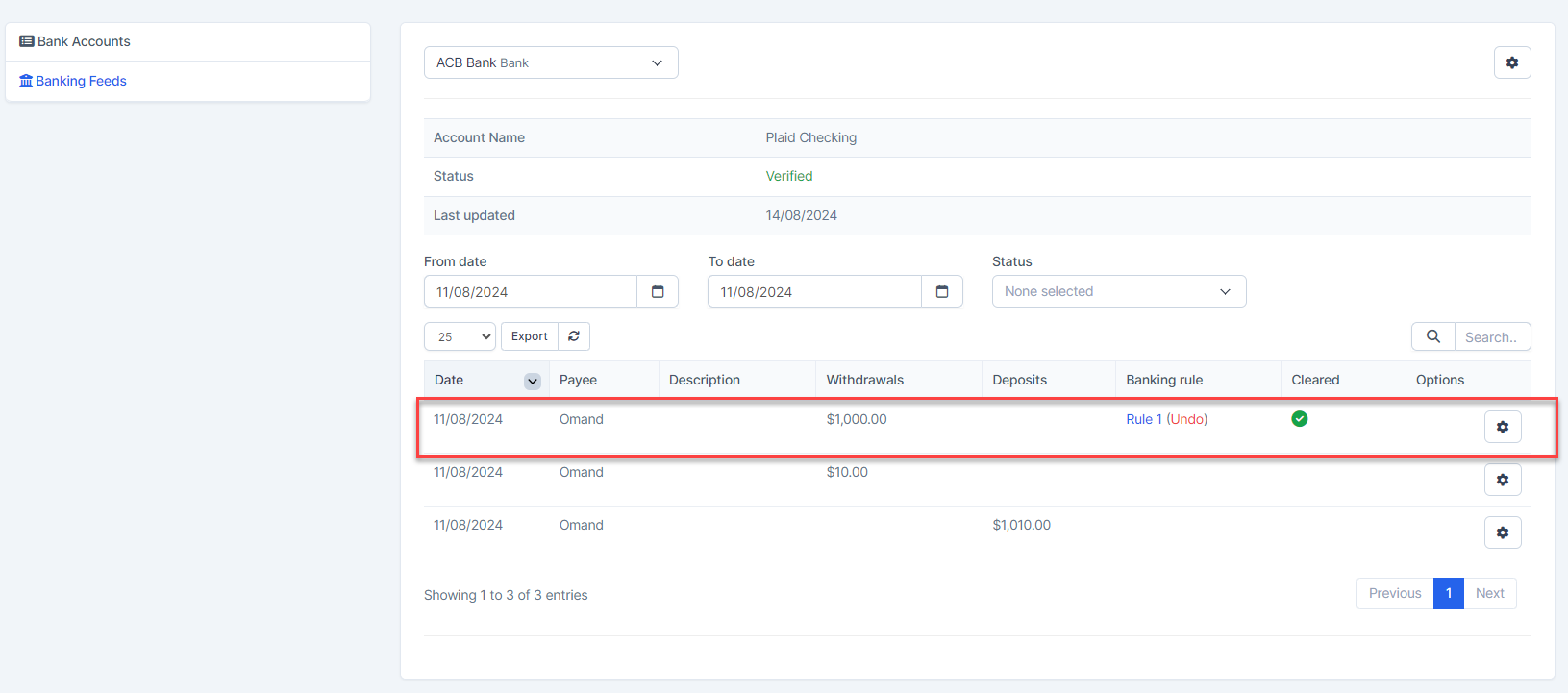
The amount is divided into parts and mapped to each account selected in the banking rule
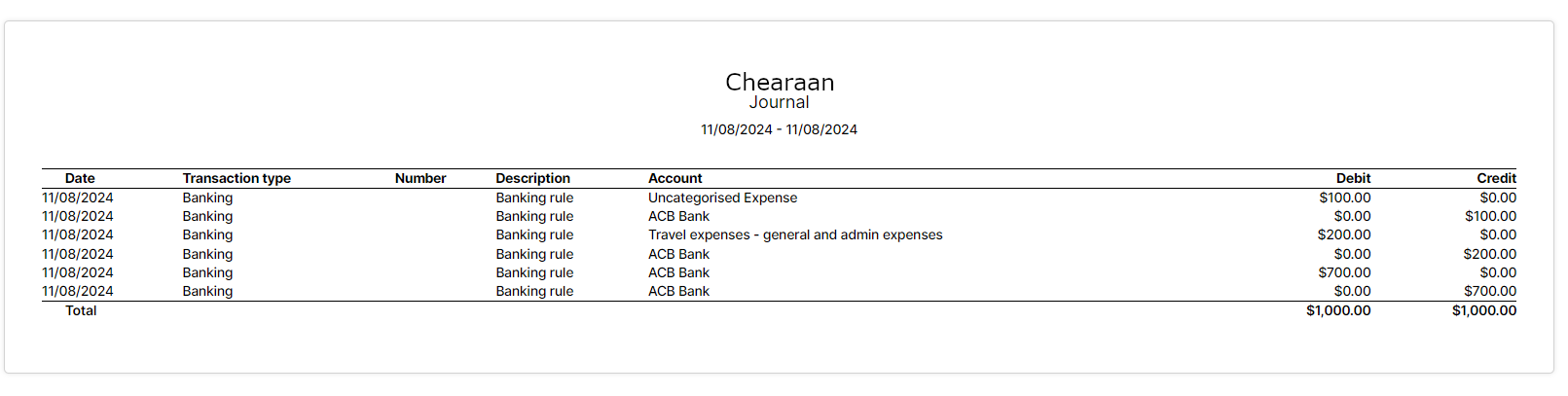
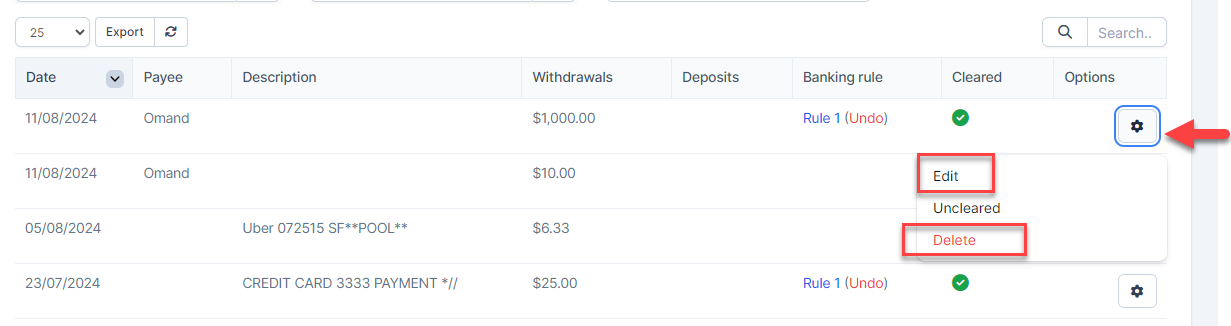
You can edit or delete the transaction you just imported.