Account list
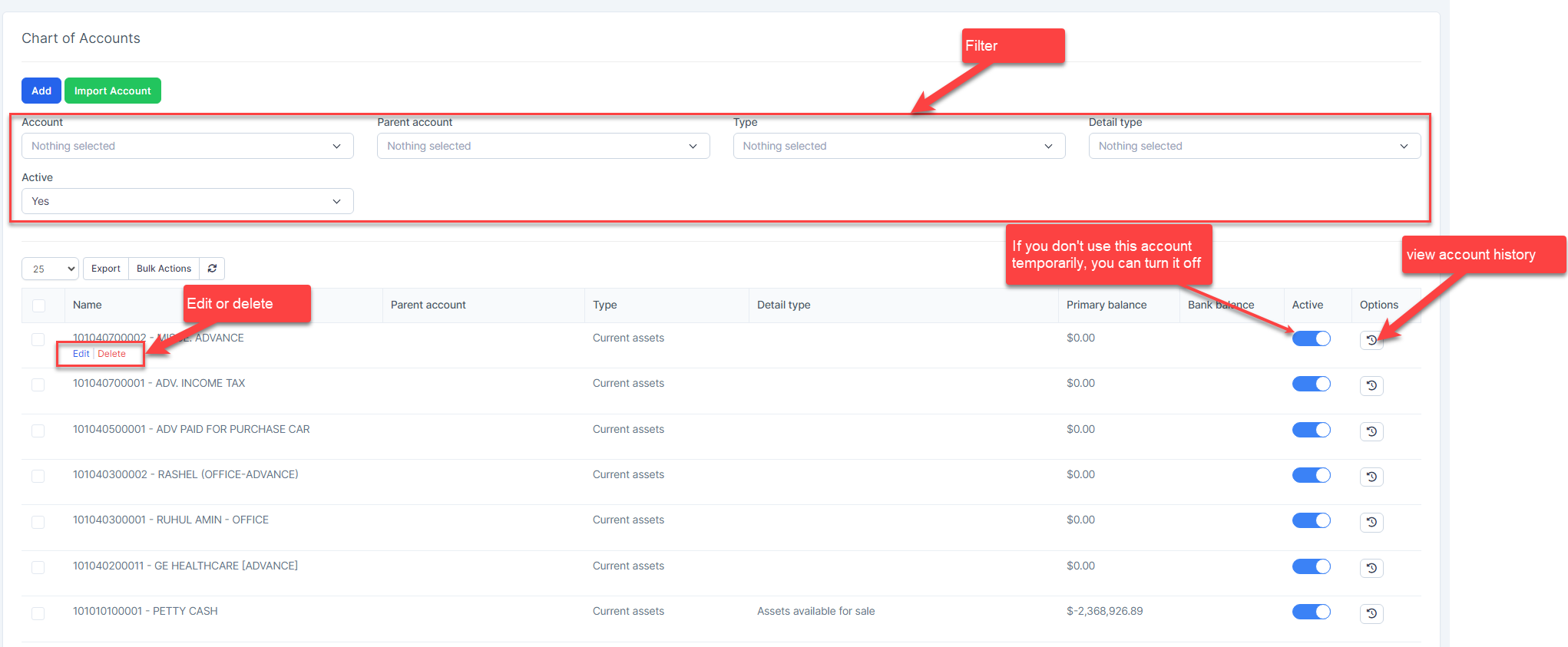
Create a new account
- Step 1. Go to Chart of Account menu under the Accounting module in the left sidebar
- Step 2. Click on the Add button
- Step 3. In the Account popup, fill in the following detail
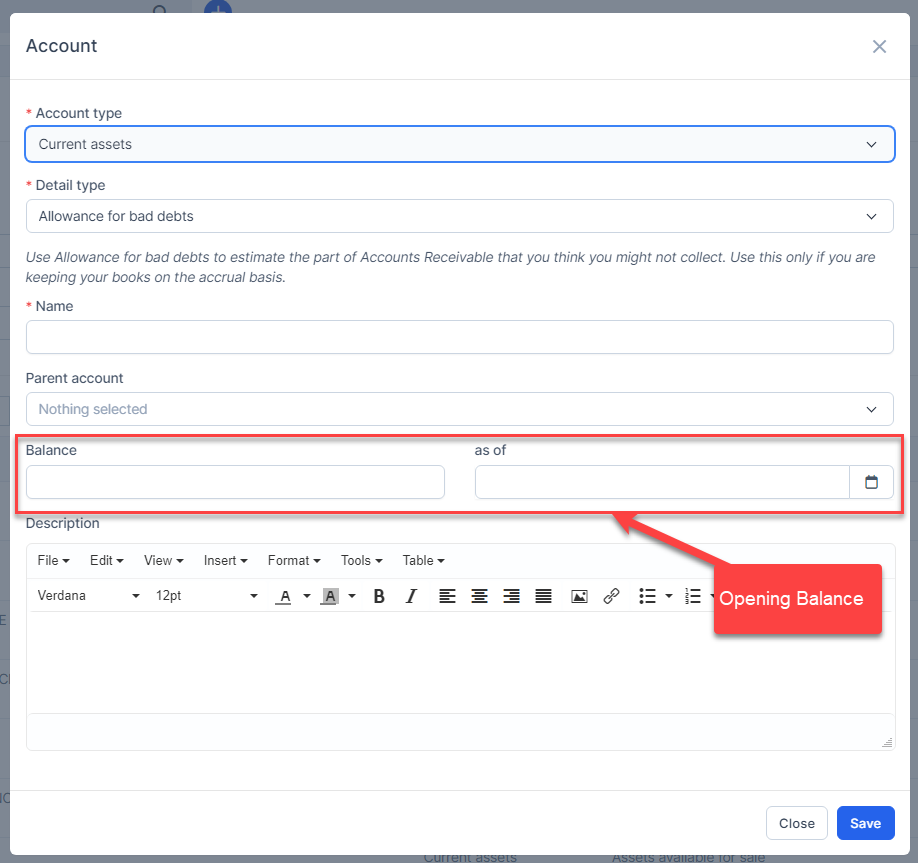
- Select the Account type
2. Select the Detail type. You can create a different detail type at the Account detail type page.
3. Enter the account name
4. Select the Parent account (optional)
5. Enter the Balance and as of (optional). Only specialized account types show this field.
6. Enter the Description (optional)
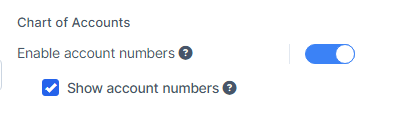
If you want to enter the number for the account, and show the account number on the Chart of account , reports and transactions page, you must enable Enable account numbers and Show account numbers.
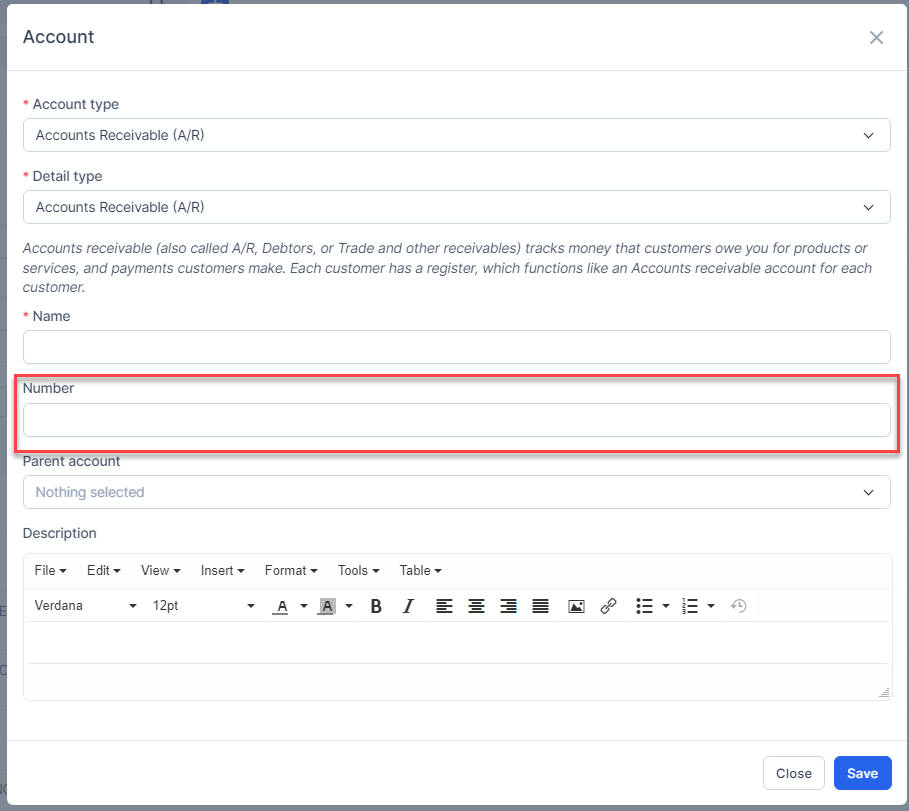
- Step 4. Click on the Save button
Delete account
Only accounts that are not the default account and have no related transactions can be successfully deleted.
Import account
- Step 1. Click on the Import Account button
- Step 2. To ensure successful import (correct format, full columns) you should download the template file by clicking Download the template button
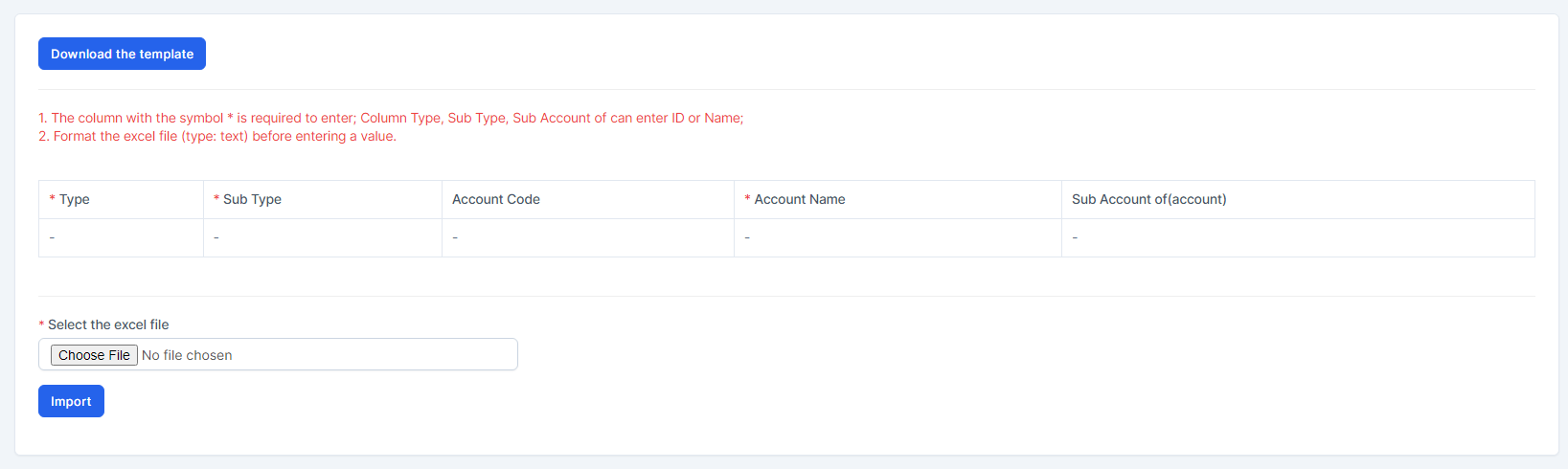
- Step 3. Enter the data you need to import into the downloaded file and save it.
- Step 4. Click the Choose File button under Select the excel file and choose a file -> click on the Import button
In case the import fails, the Download error file button will be displayed. To see the import error, click Download error file to download this file and see the error.
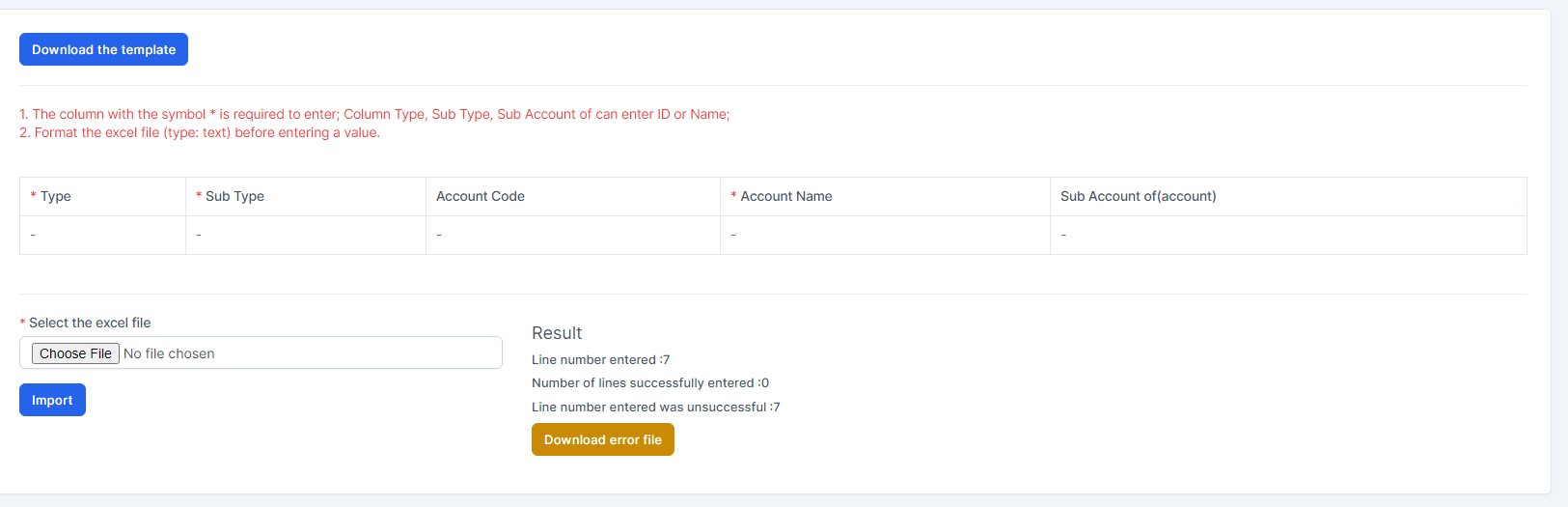
=> Then go to the last column in the file (Error column) to see the exact error that caused the import of the item to fail
