Manual Mapping
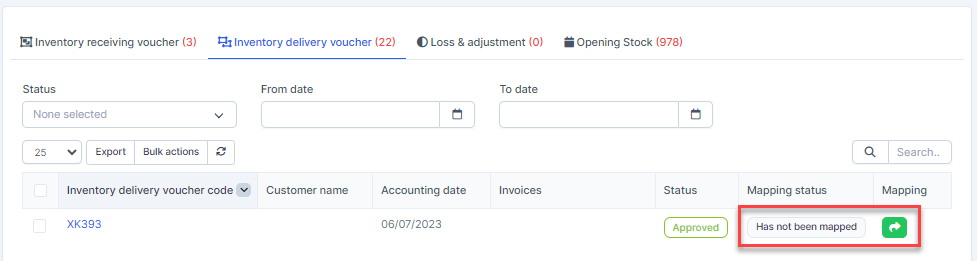
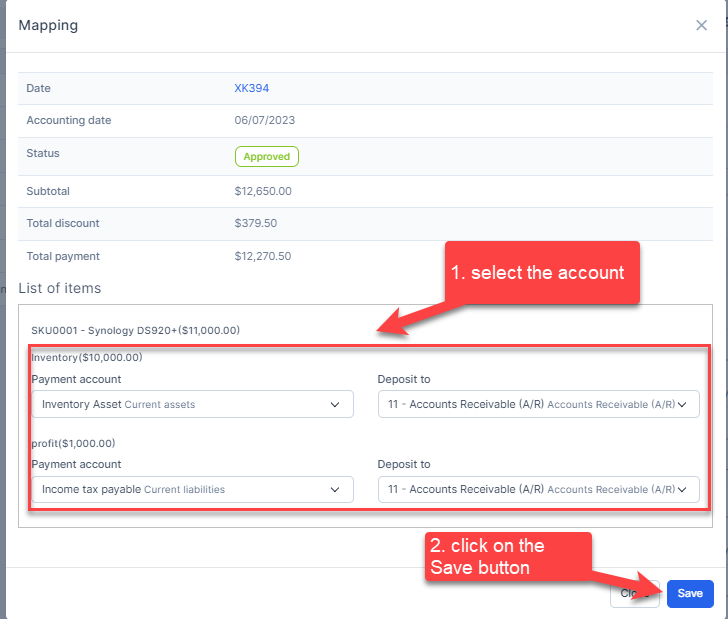
NOTE: If the Inventory delivery voucher mapping is disabled, the inventory delivery voucher is not automatically mapped. Manual mapping is required.
Accounting->Settings->Mapping Setup->Inventory

Accounting->Transactions->Inventory
Automatic mapping for inventory delivery voucher
- Step 1. Go to Settings menu under the Accounting module in the left sidebar -> Select the Mapping setup menu -> Select the Inventory tab -> Enable the Inventory delivery voucher mapping setup and select the payment account and deposit to -> Click on the Save button
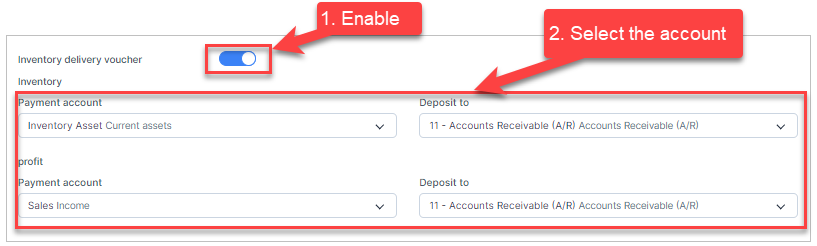
Profit = Selling price - Purchase price
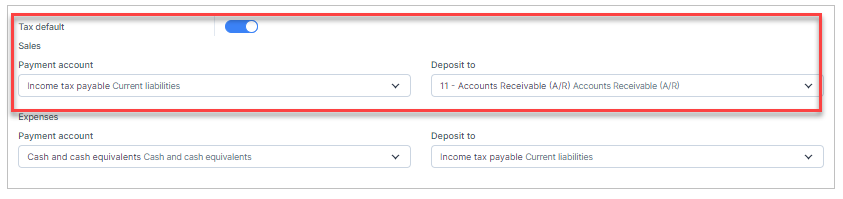
- Step 2. Enable the Tax default -Sales mapping setup so that the total tax amount of the inventory delivery voucher will be mapped to this configuration. if this configuration is not enabled, the tax of the inventory delivery voucher is not mapped to any accounts.
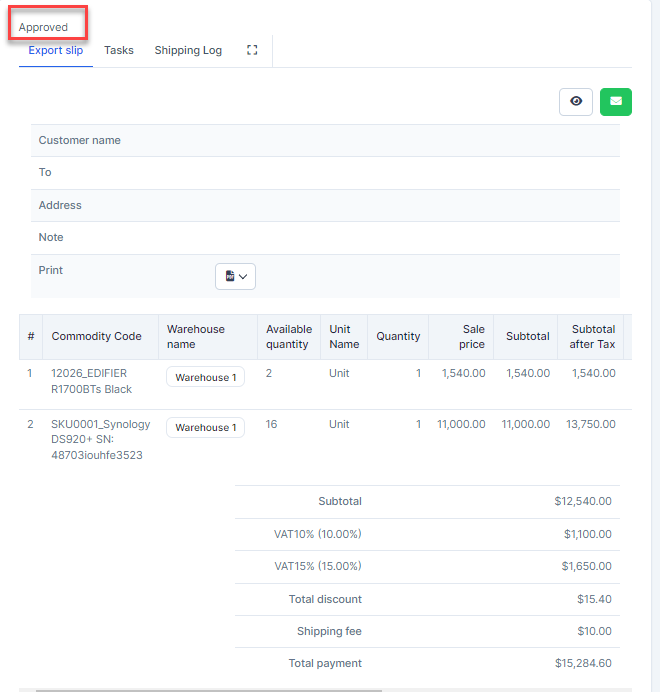
Step 3. Create the inventory delivery voucher and approve it.