NOTE: If the Invoice: default for all item is turned off, the invoice is not automatically mapped.
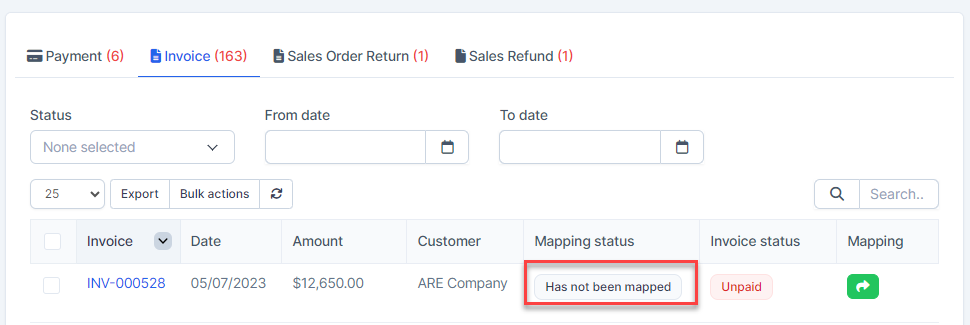
Automatic invoice mapping
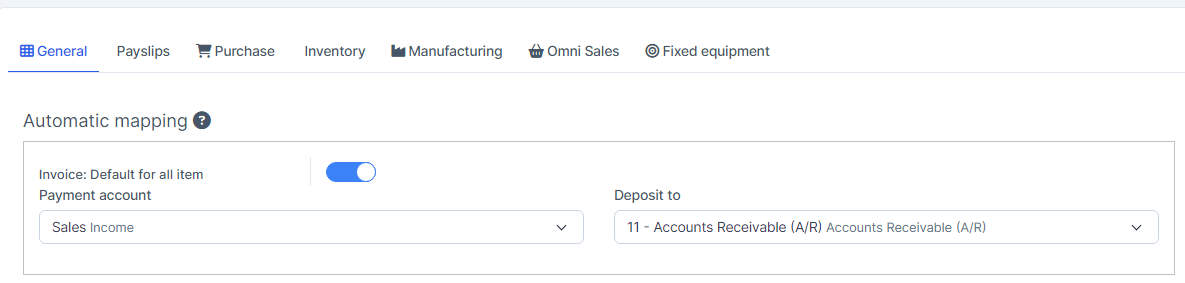
- Step 1. Go to Settings menu under the Accounting module -> Mapping setup -> General -> Enable the Invoice: default for all item
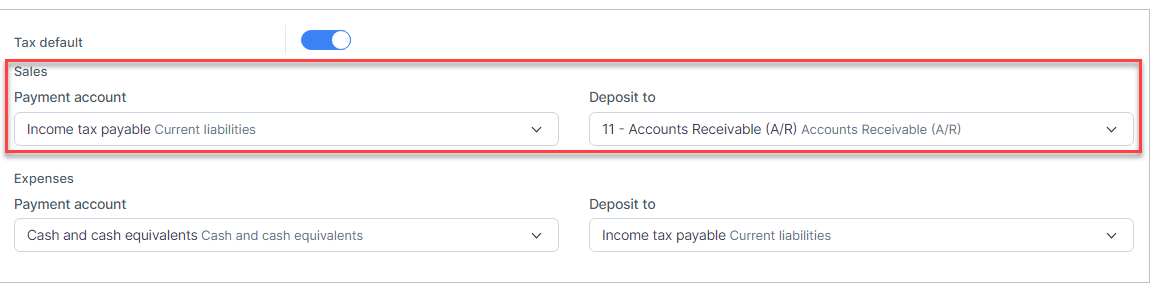
- Step 2. Enable the Tax default
- Step 3. Go to Invoices menu under the Sales module in the left sidebar -> Create an invoice
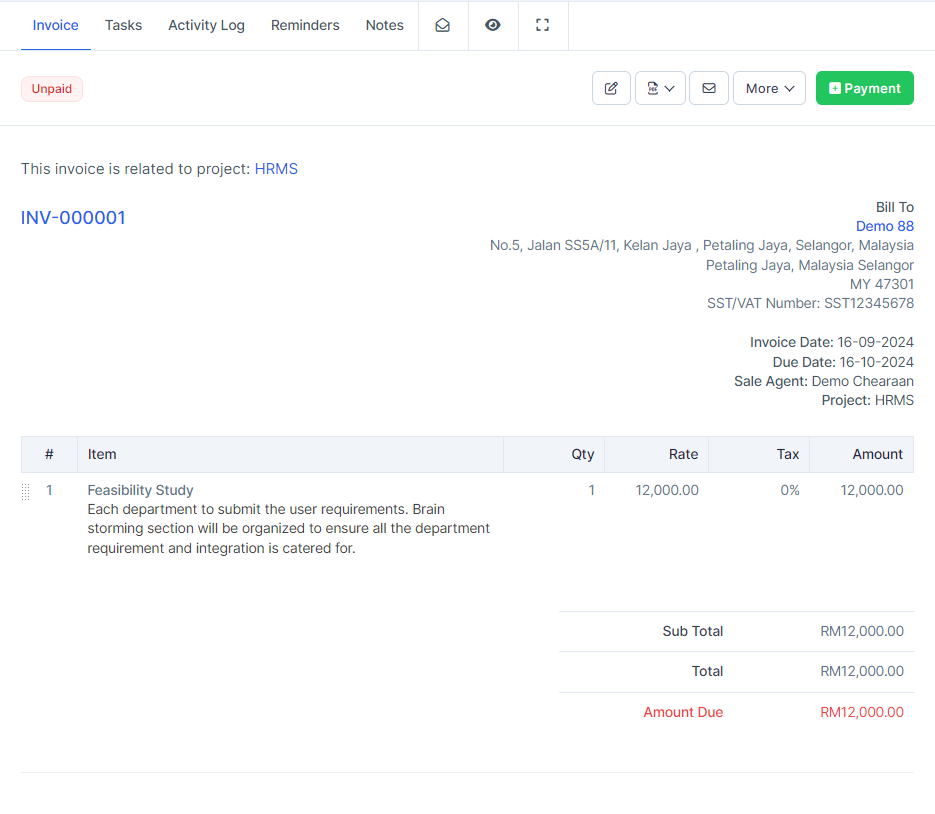
After the invoice is created successfully, the invoice is automatically mapped, you can check the invoice is mapped or not at Transactions menu -> Sales -> Invoice
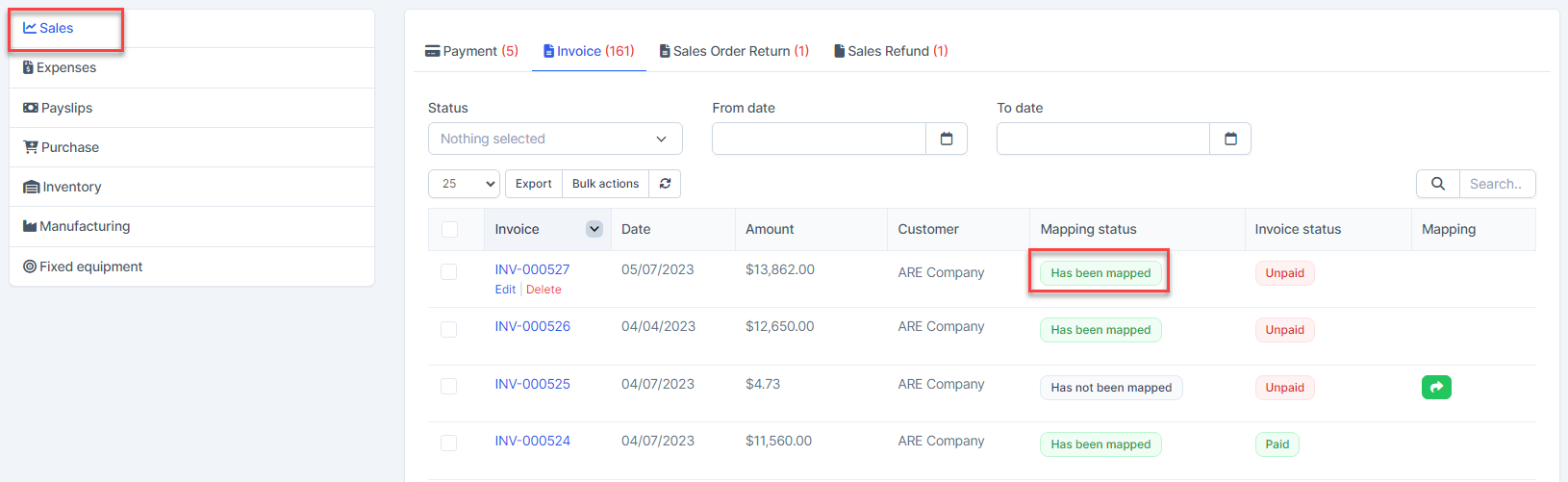
- Click on the Edit to view mapping detail
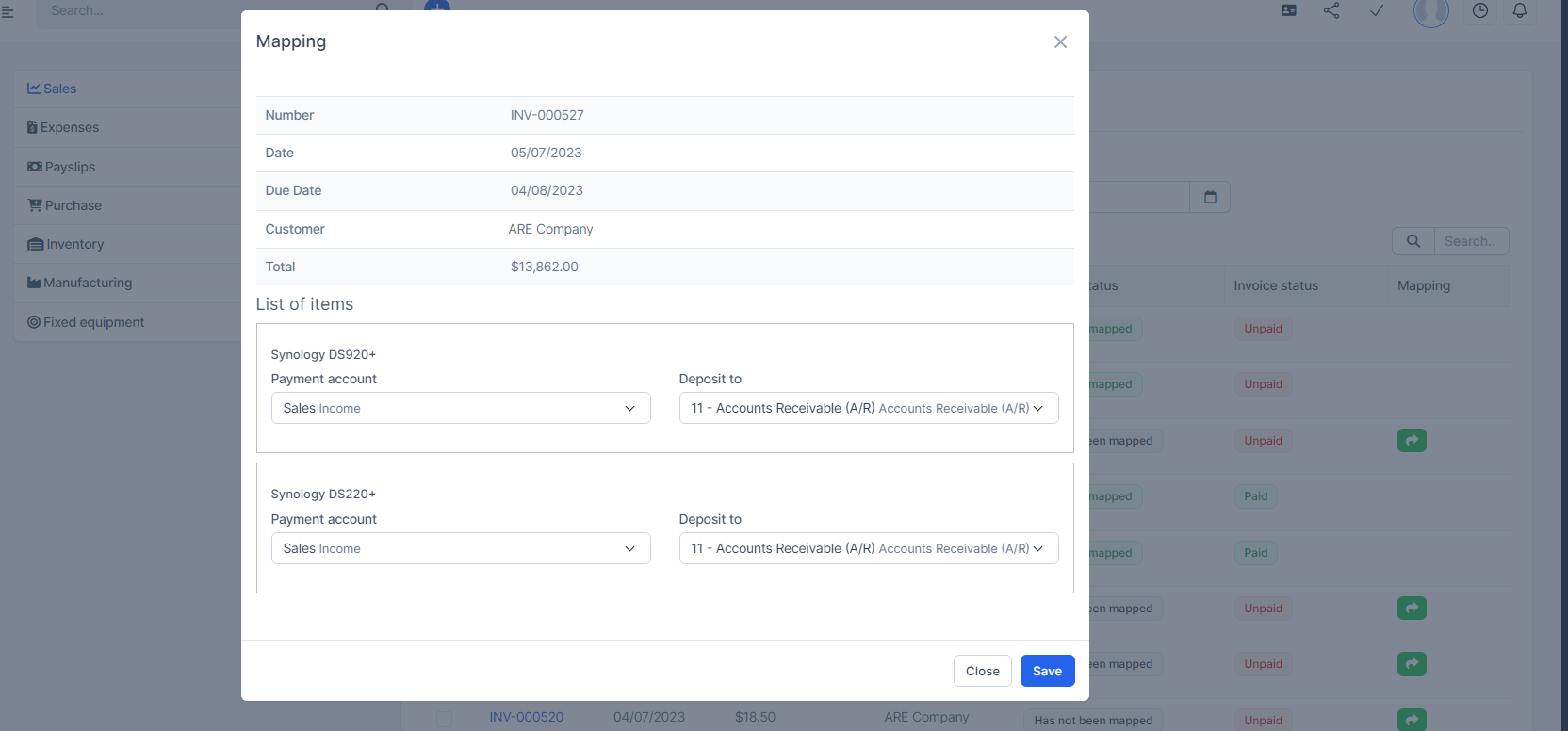
- Value of each product (excluding tax) mapped to Invoice: Default for all items. Each tax of a product is mapped to Tax Default
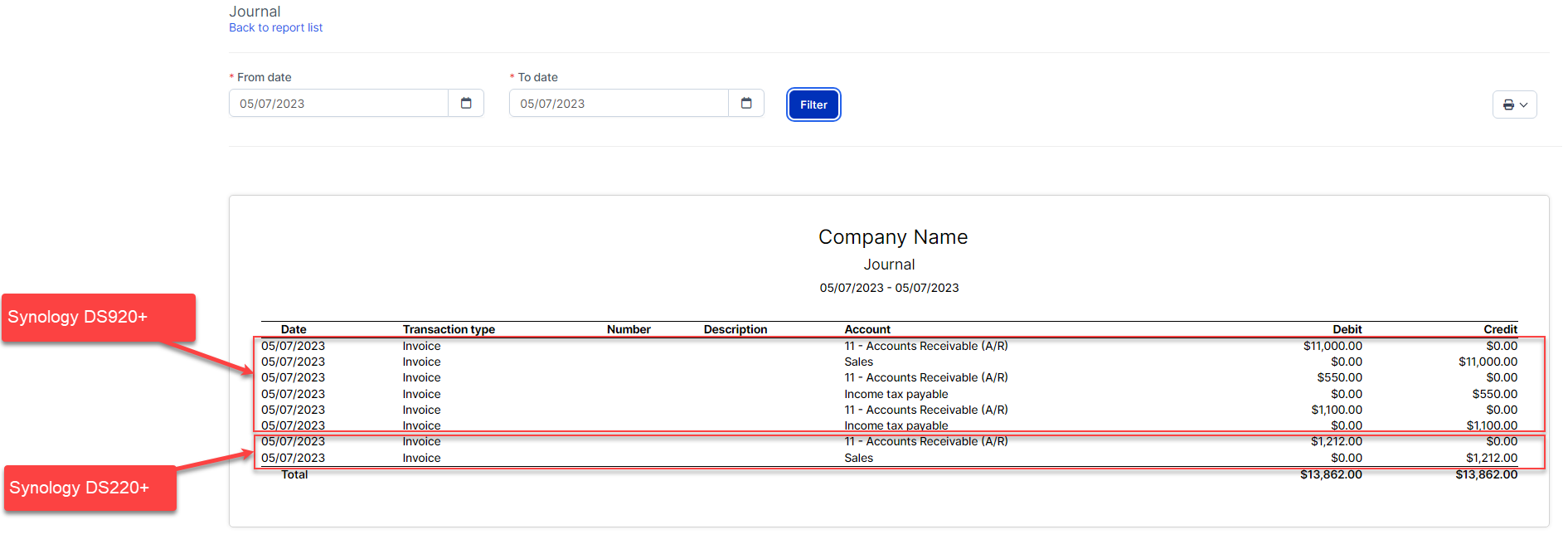
Automatic invoice mapping that contains special items and taxes
- Step 1. Enable the Invoice: default for all item
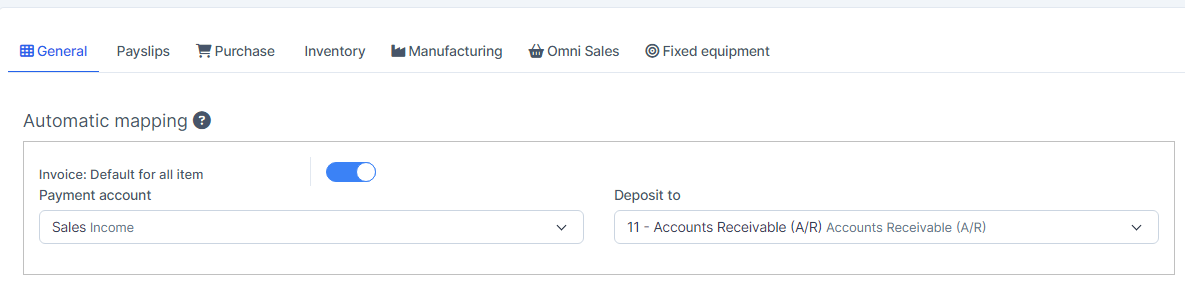
- Step 2. Enable the Tax default
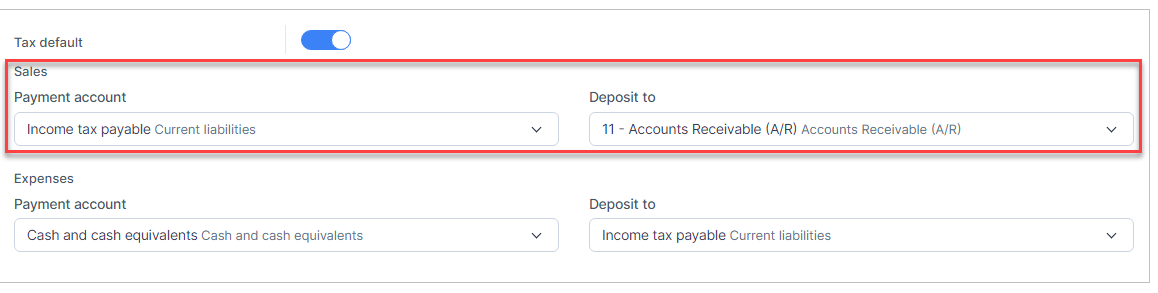
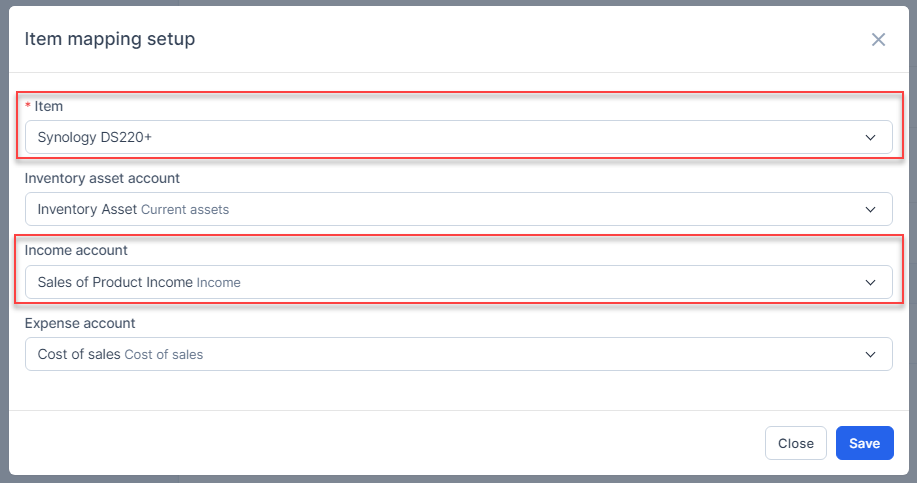
- Step 3. Create item mapping setup
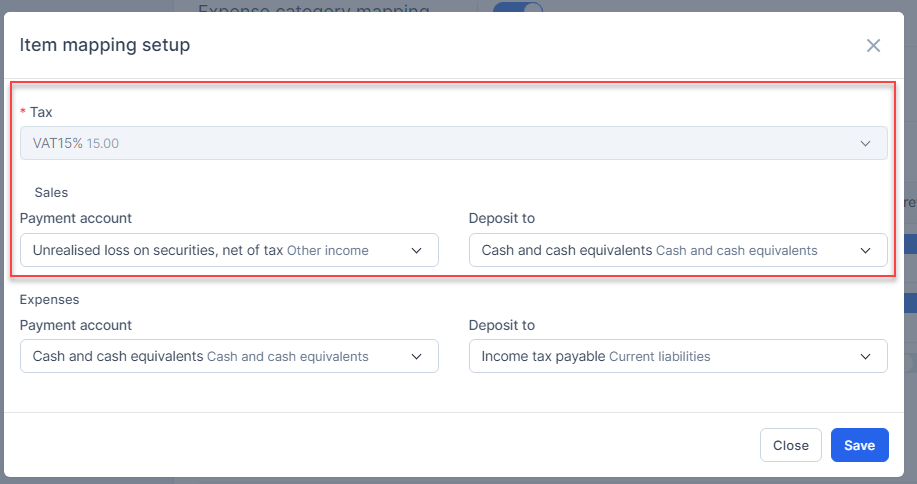
- Step 4. Create tax mapping setup
- Step 5. Create the sale invoice
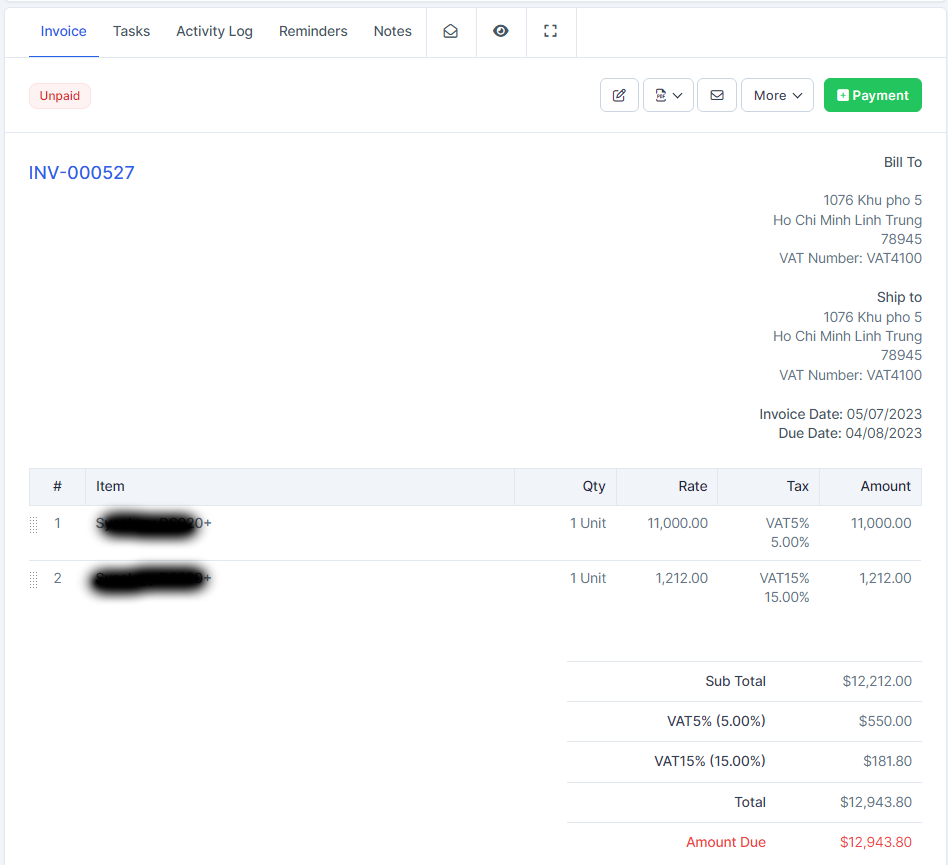
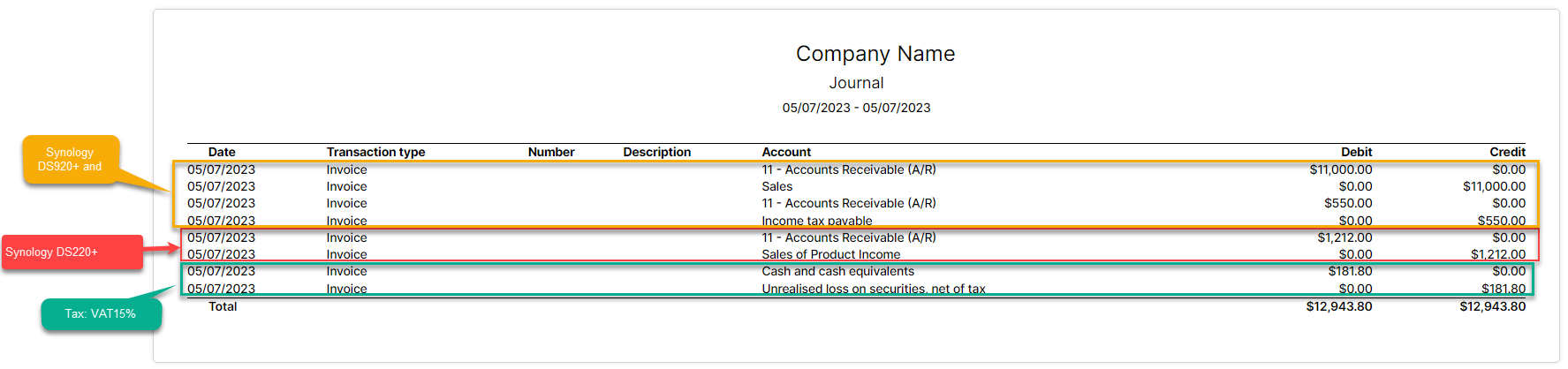
Result:
- Synology DS920+ mapped to accounts under Invoice: Default for all item
- VAT 5% mapped to accounts under Tax default
- Synology DS220+ mapped to accounts under Item mapping setup
- VAT 15% mapped to accounts under Tax mapping setup